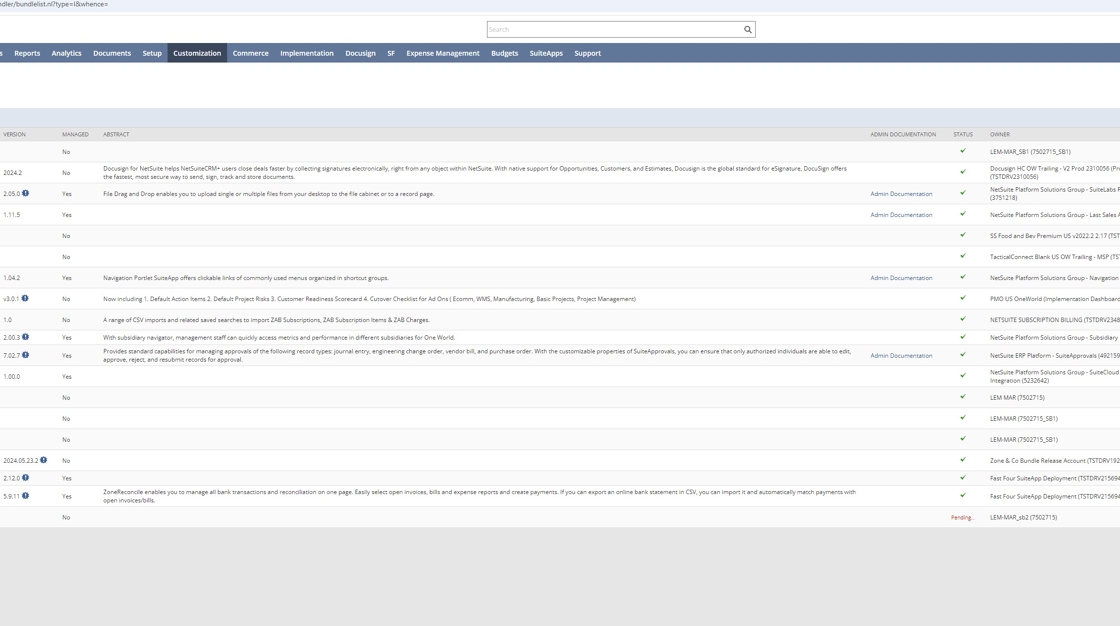
This guide will walk you through installing the Excel Connector+ Bundle. There is a video walkthrough and also a step by step guide with screenshots. Please read the notice in red below before following the rest of the guide.
Please note: You are now required to turn on a feature in NetSuite for the Excel Connector to work. The video is not yet updated to reflect this. Before installing the bundle, as an Administrator, please do the following:
1. Navigate through your center to Setup > Company > Enable Features and click on Enable Features

2. Click on the CRM Subtab:

3. Ensure the Online Forms checkbox is checked:

You may now proceed to install the bundle.
Watch a video…
…or follow a written guide:
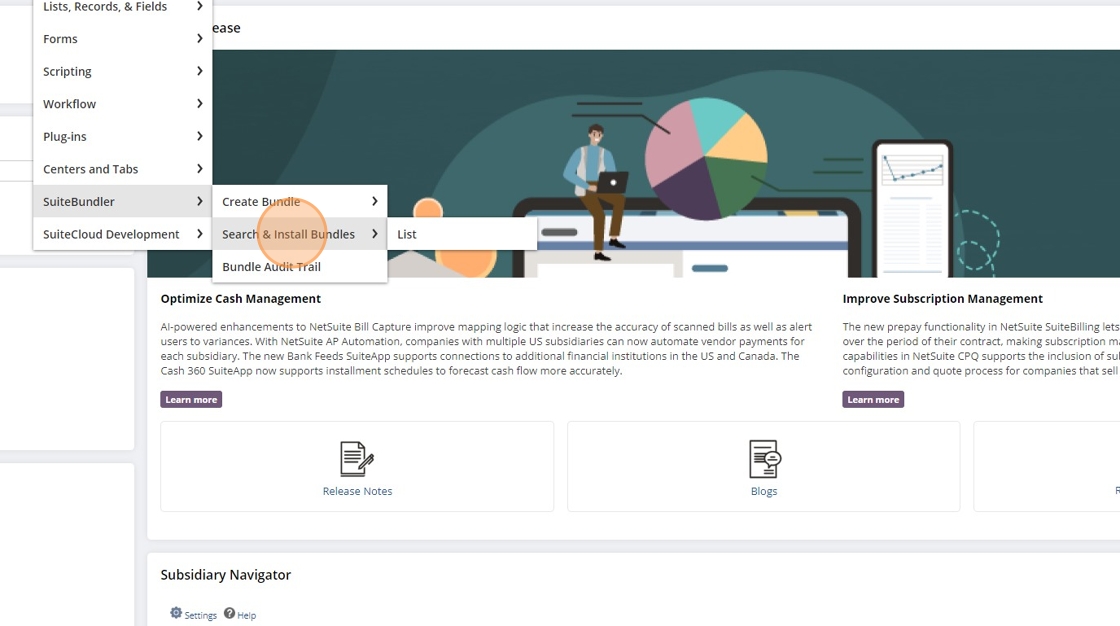
1. Navigate to Customization > SuiteBundler > Search & Install Bundles
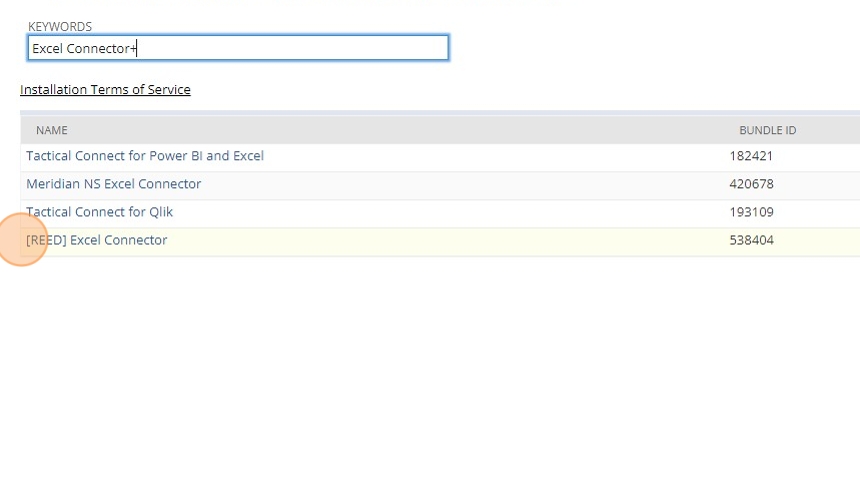
2. Search "Excel Connector+" in the keywords.

3. Click "[REED] Excel Connector" with bundle ID 538404.
4. Click "Install"

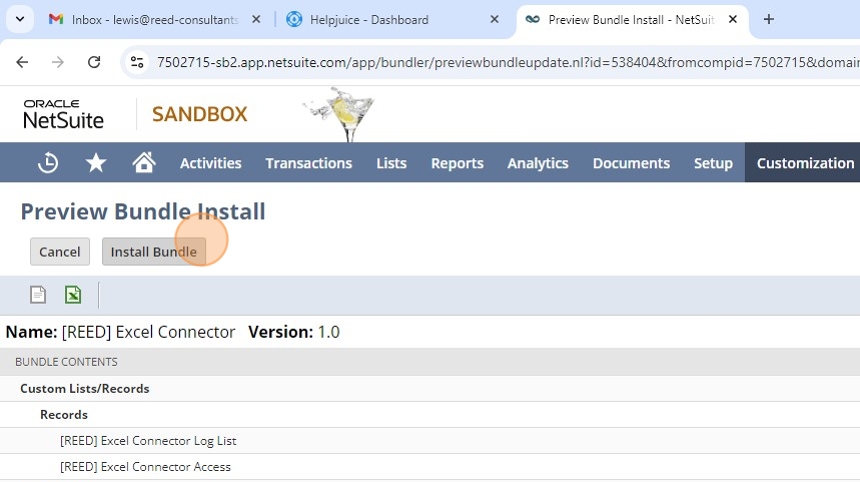
5. On the next page, click "Install Bundle"
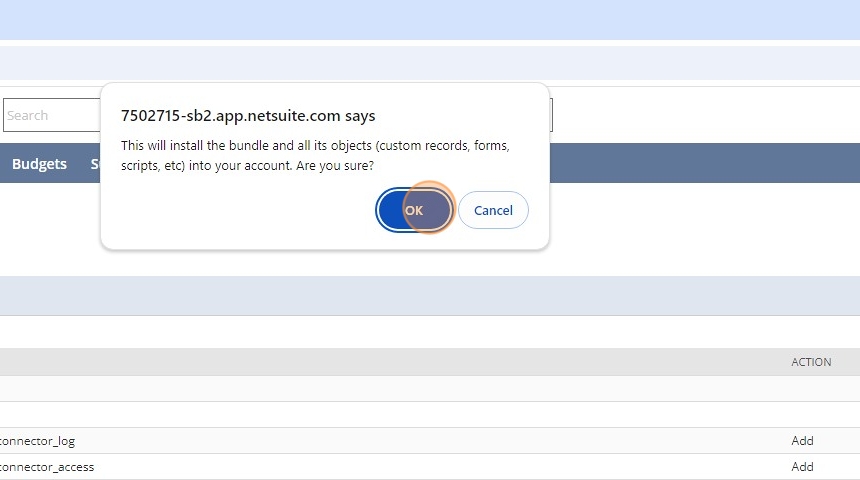
6. Click OK to the pop-up.
7. Click refresh every now and then until the bundle has installed.